Published on: January 14, 2026
4 min read
Monitor, manage, and automate AI workflows
Explore the GitLab Duo Agent Platform Automate capabilities. Monitor activity through sessions, automate workflows with event-driven triggers, and manage your AI-powered development processes.


Welcome to Part 6 of our eight-part guide, Getting started with GitLab Duo Agent Platform, where you'll master building and deploying AI agents and workflows within your development lifecycle. Follow tutorials that take you from your first interaction to production-ready automation workflows with full customization.
In this article:
- Introduction to Automate capabilities
- Managing agents in your project
- Managing flows in your project
- Setting up event-driven triggers
- Monitoring flows activity with sessions
🎯 Try GitLab Duo Agent Platform today!
Introduction to the Automate capabilities
The Automate capabilities are your central hub for managing AI workflows in GitLab. They provide visibility into agent and flow activity, and enable event-driven automation.
Navigate to Project → Automate.
The Automate menu provides these main sections:
- Agents: View, create, and manage agents in your project
- Flows: View, create, and manage flows in your project
- Triggers: Configure event-based automation for flows
- Sessions: Monitor agent and flow execution with detailed logs
Managing agents
The Agents section allows you to view, create, and manage agents in your project.
Navigate to Automate → Agents.
Both Agents and Flows sections provide two tabs for organizing your resources:
- Enabled: Agents/flows available to your project
- Managed: Agents/flows created and owned by your project
To expand your available agents:
- Create new custom agents, enable at the top-level group, then enable them in your project.
- Browse the AI Catalog and enable existing agents in your top-level group first, then in your project.
For details on creating custom agents, see Part 3: Understanding agents.
Managing flows
The Flows section allows you to view, create, and manage flows in your project.
Navigate to Automate → Flows.
To expand your available flows:
- Create new custom flows, enable at the top level group, then enable them in your project.
- Browse the AI Catalog and enable existing flows in your top-level group first, then in your project.
For details on creating custom flows, see Part 4: Understanding flows.
Automating with triggers
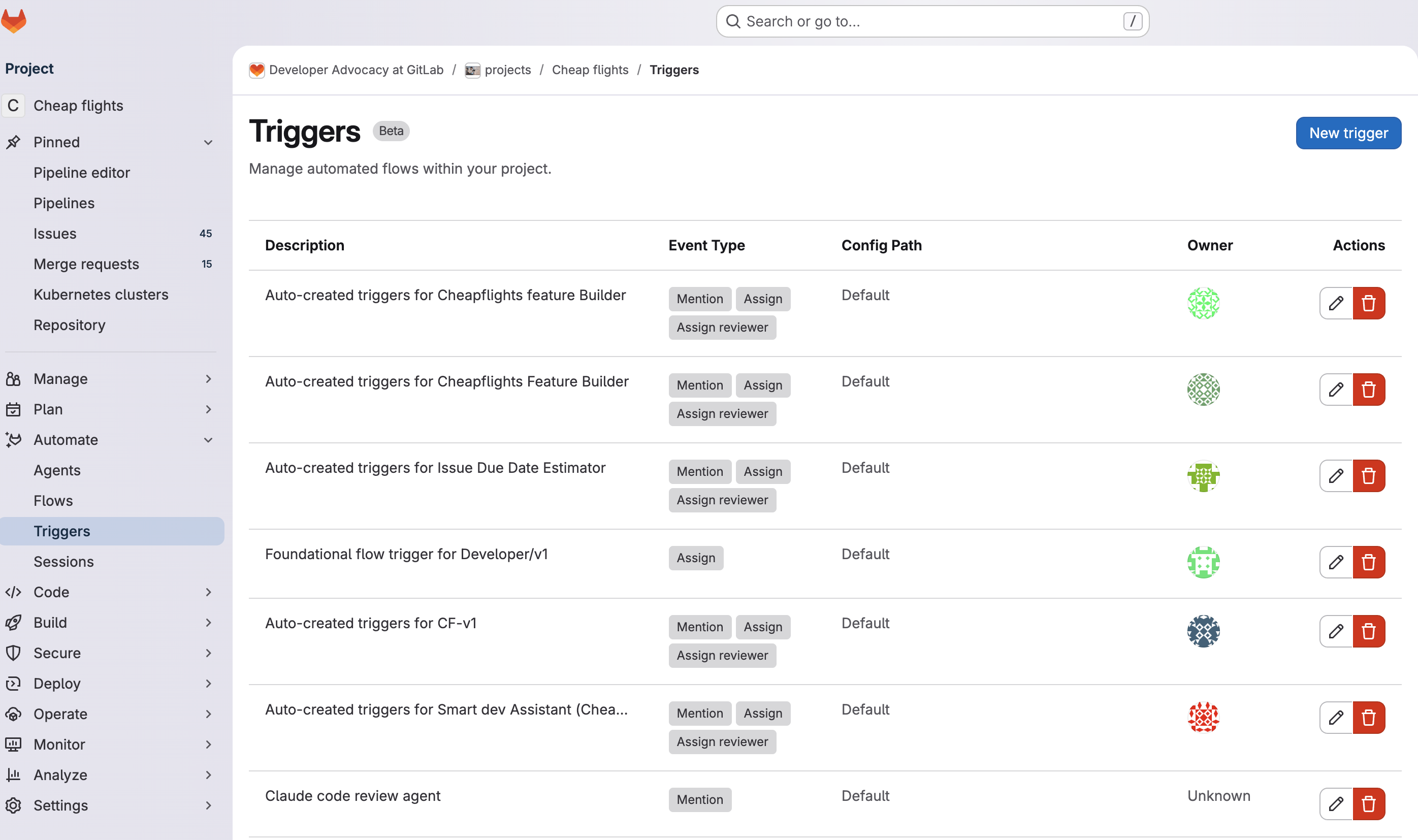
Triggers enable event-driven automation by automatically executing agents or flows when specific GitLab SDLC events occur.
Navigate to Automate → Triggers.
Available trigger event types:
- Mention: Mentioned in a comment, for example,
@ci-cd-optimizer. - Assign: Assigned to an issue or MR, for example, in the UI or quick action
/assign @ci-cd-optimizer. - Assign Reviewer: Assigned as MR reviewer, for example, in the UI or quick action
/assign_reviewer @ci-cd-optimizer.
How triggers work:
- Event occurs (e.g.,
@ci-cd-optimizermentioned in MR comment) - Trigger identifies the flow to execute
- Flow runs and starts a session
- Results posted back to the issue/MR
For setup instructions, see the Triggers documentation.
Monitoring with sessions
Sessions provide transparency into agents and flows execution, including reasoning, executed tools, and outputs. Every run creates a session with an activity log.
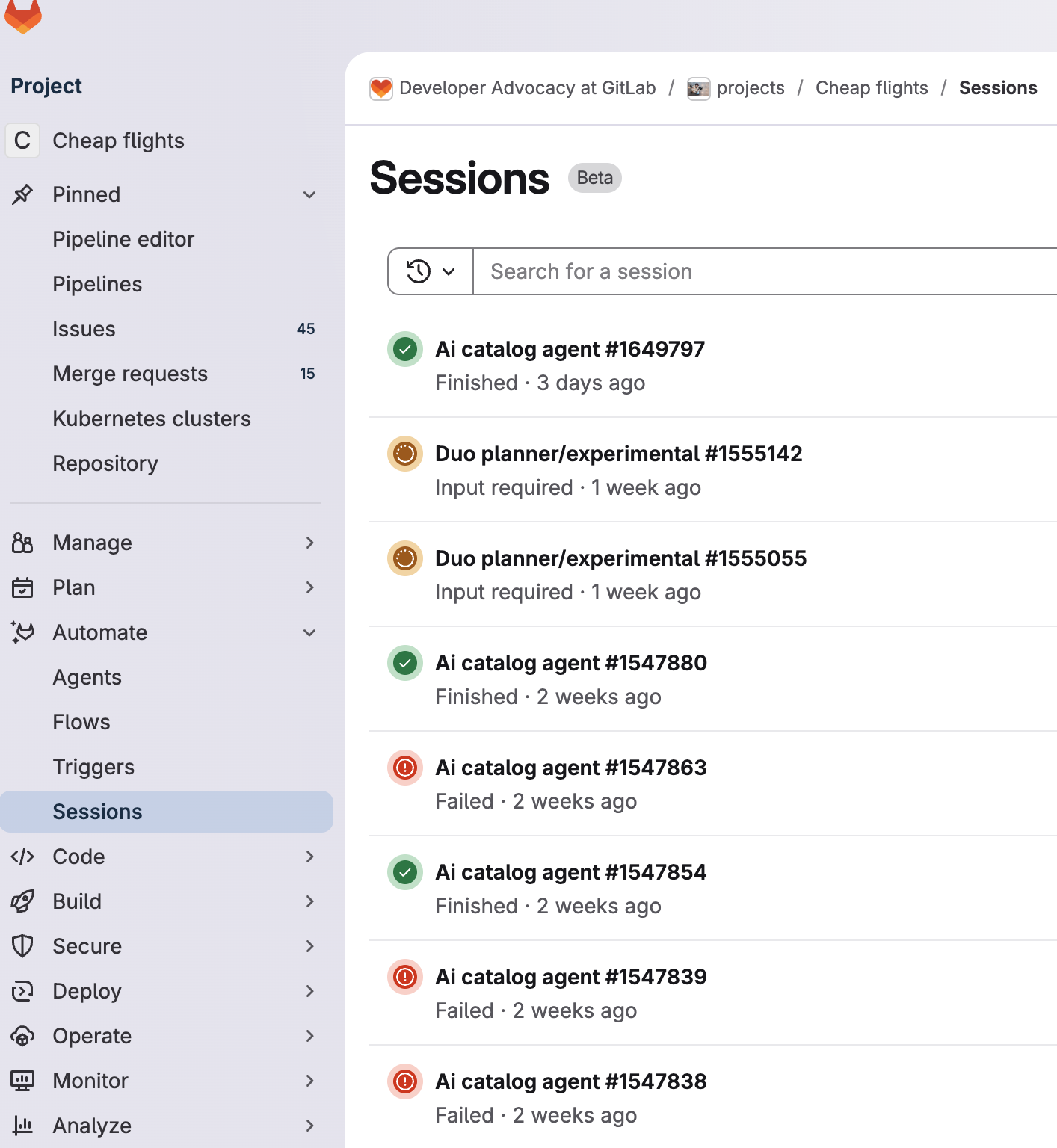
Navigate to Automate → Sessions. Sessions show:
- Execution status (Created, Running, Finished, Failed, Input Required, and more)
- Step-by-step progress and actions taken
- Agent reasoning and decision-making process
- Link to Runner job logs (Details tab)
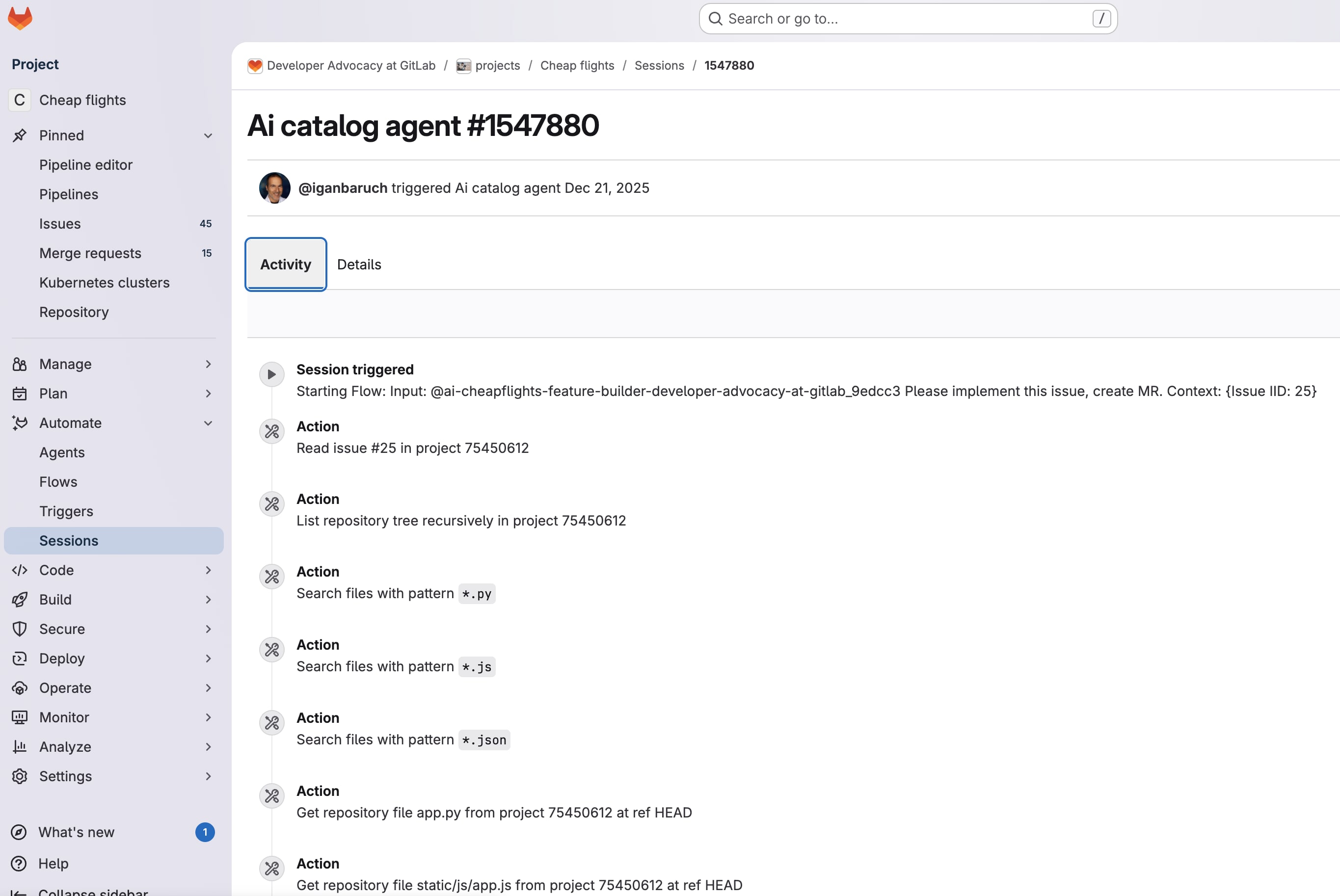
Activity tab
The Activity tab displays the step-by-step execution flow, showing each action the agent took, the tools it used, and the results of those actions.
Details tab
The Details tab provides access to the complete runner job logs, allowing you to see the full execution context and any system-level information about the flow run.
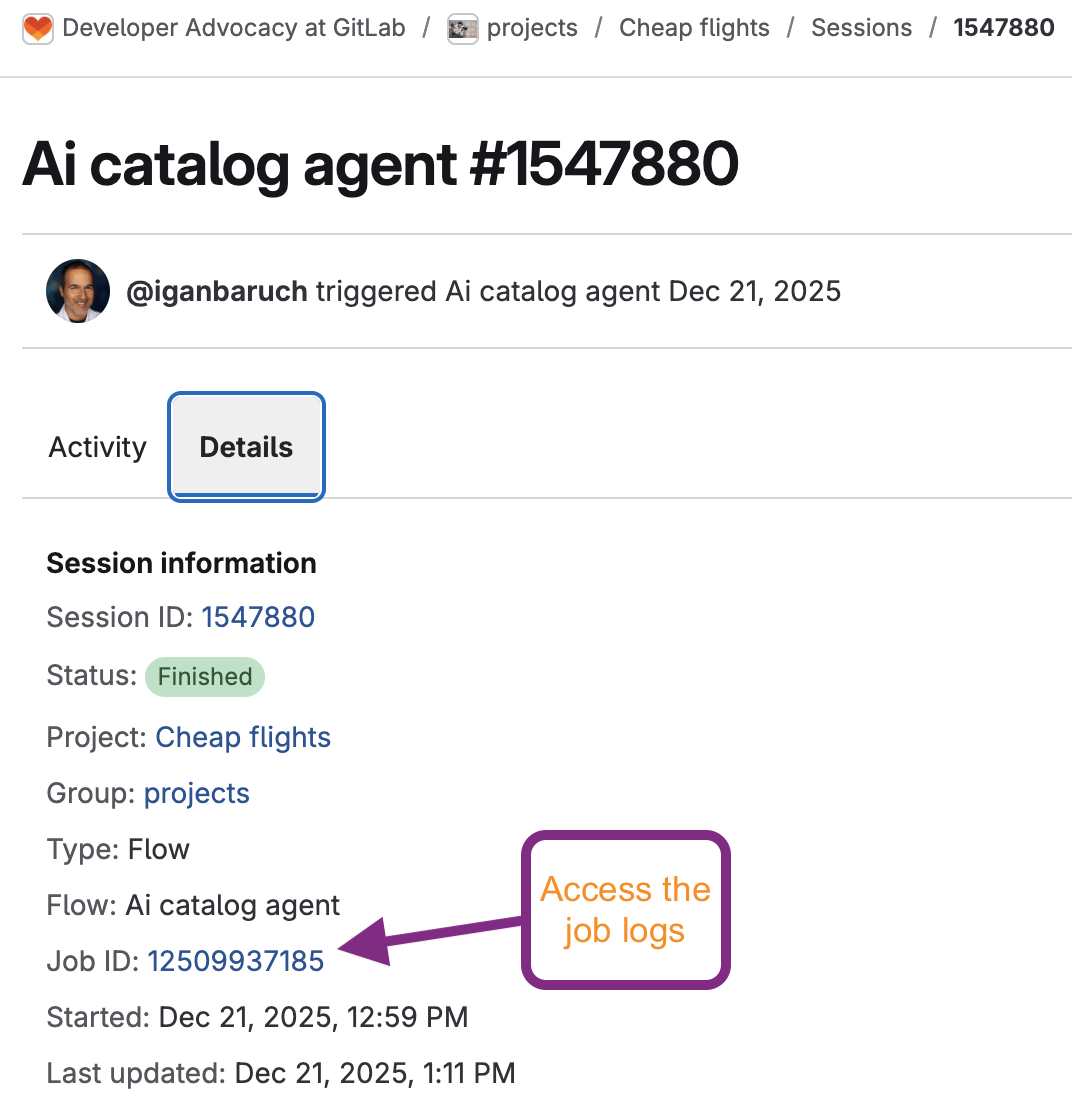
The job logs contain the full execution output, including all system messages, tool invocations, and detailed information about what the flow executed.
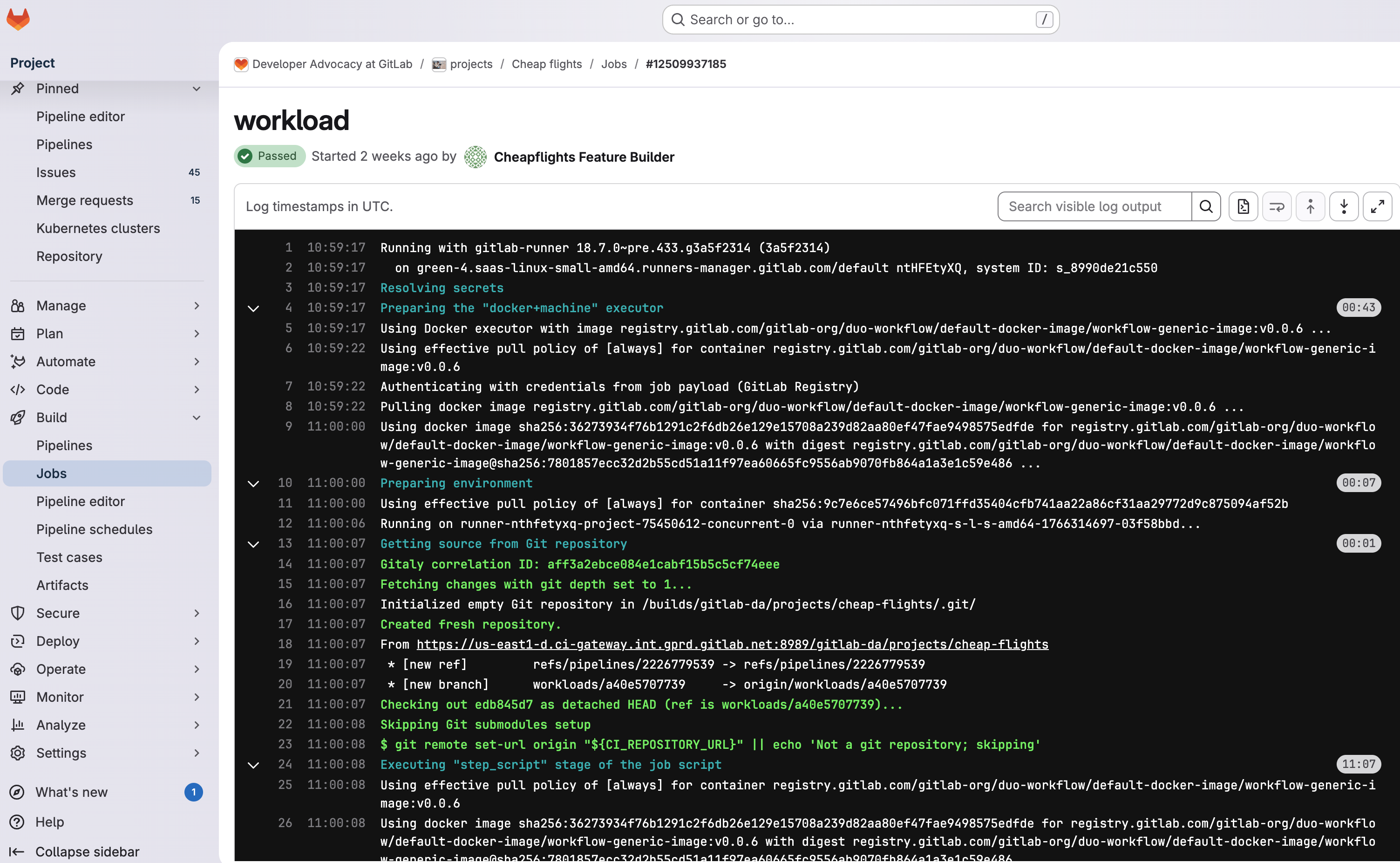
For more details, see the Sessions documentation.
What's next?
You now understand how to monitor agent and flow activity through sessions, set up event-driven automation with triggers, and manage your AI workflows from the Automate capabilities. Next, learn how to extend GitLab Duo with external tools and data sources in Part 7: Model Context Protocol integration.
Resources
Next: Part 7: Model Context Protocol integration
Previous: Part 5: AI Catalog
We want to hear from you
Enjoyed reading this blog post or have questions or feedback? Share your thoughts by creating a new topic in the GitLab community forum.
Share your feedback